
Home /Products /Wireless Adapter for CarPlay & Android Auto /Wireless Adapter for CarPlay & Android Auto /


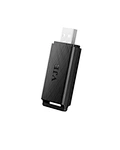
Wireless Adapter for CarPlay & Android Auto
Model No. : VistaWay01
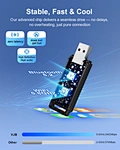
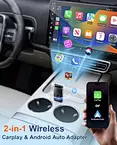
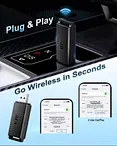
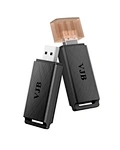
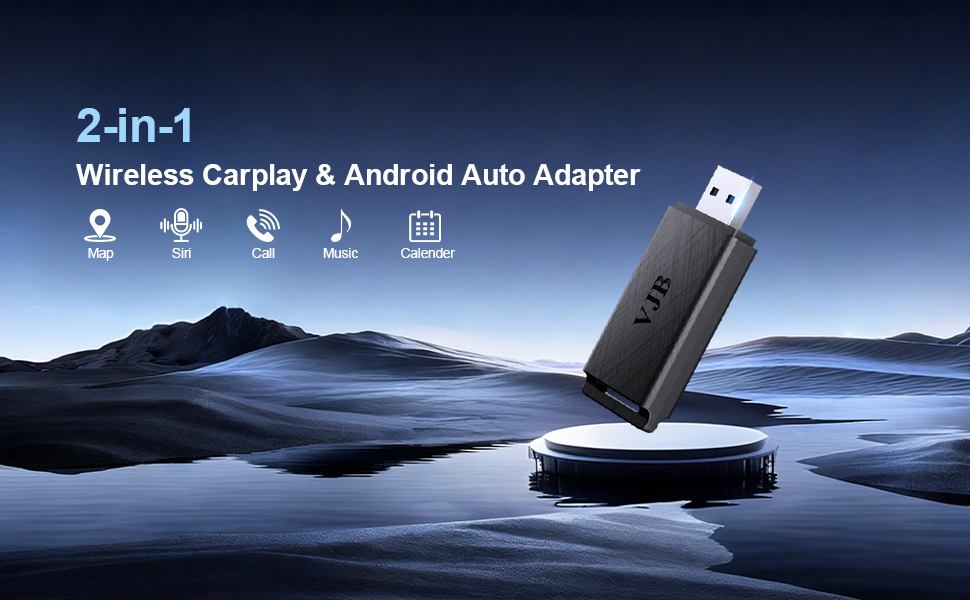
* 2-in-1 Wireless CarPlay & Android Auto Adapter
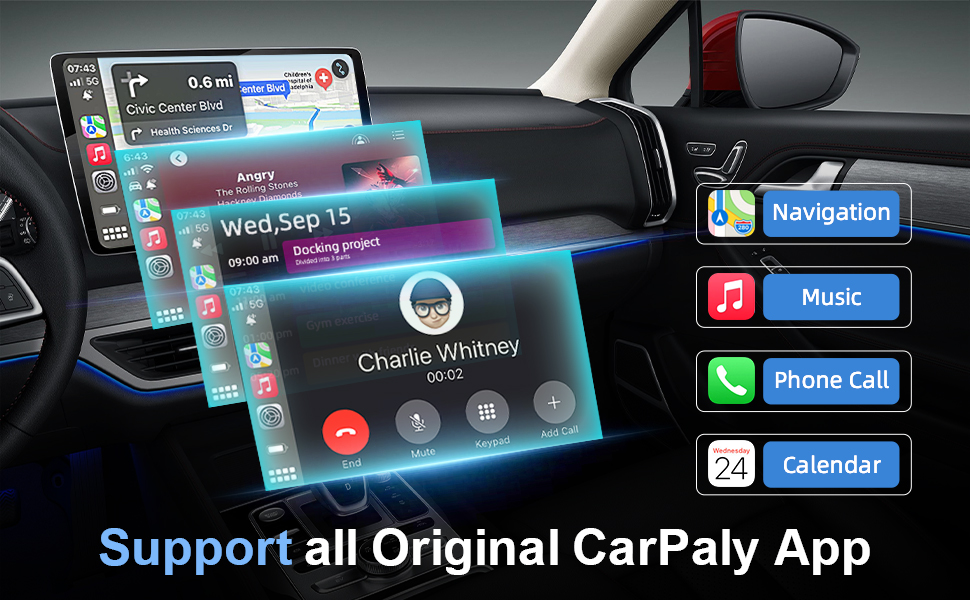
* Support All Original CarPlay App
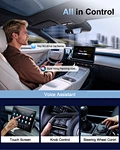
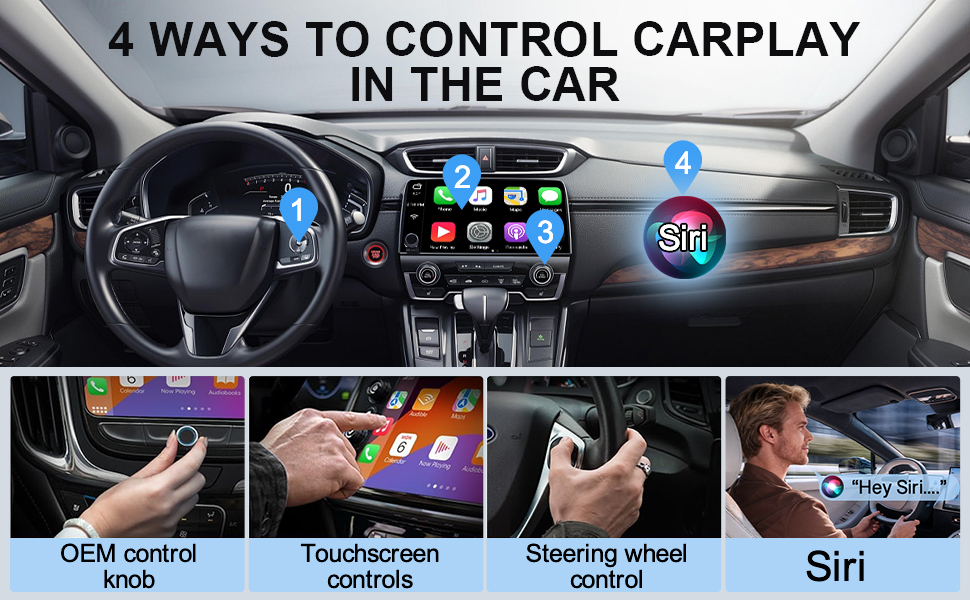
* 4 Ways To Control CarPlay In The Car
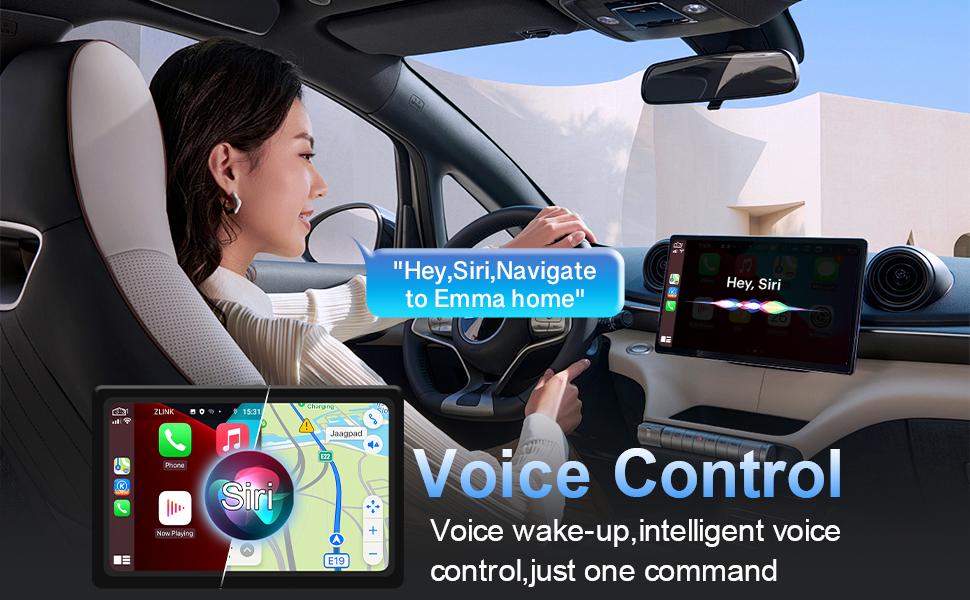
* Voice Control,Voice Wake-up,Intelligent Voice Control,Just One Command
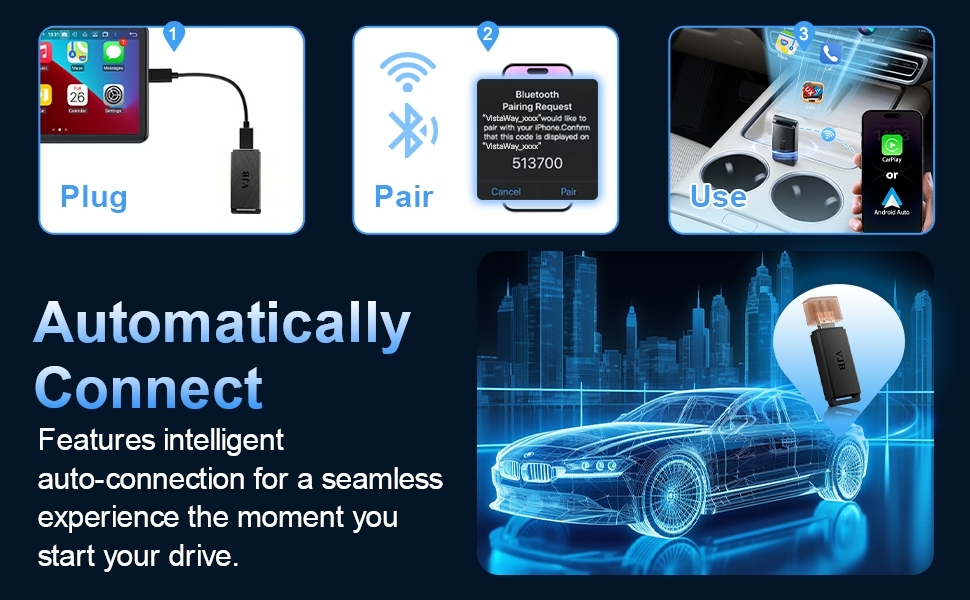
* Features Intelligent Auto-Connection For A Seamless Experience The Moment You Start Your Drive.
* Support All Original CarPlay App
* 4 Ways To Control CarPlay In The Car
* Voice Control,Voice Wake-up,Intelligent Voice Control,Just One Command
* Features Intelligent Auto-Connection For A Seamless Experience The Moment You Start Your Drive.
Quantity:
Contact Now
add to cart
Product Specifications:
| CPU | Allwinner V851 |
| Wi-Fi Module | Realtek 8821BS |
| Wi-Fi Frequency | 2.4GHz & 5.8GHz |
| Bluetooth Version | Bluetooth 5.2 |
| Operating Power | DC 5V 1.0A |
| Standby Power | 0.75W |
| Product Materials | ABS+PC |
* Compatibility Check:
Your vehicle MUST meet the following requirements to work with our wireless adapter:
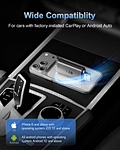
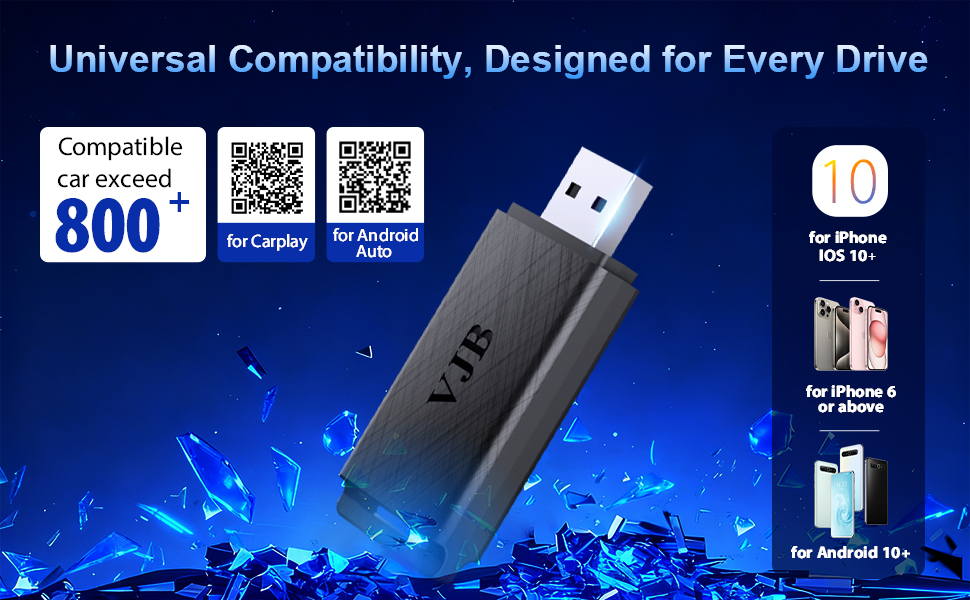
- Apple CarPlay or Android Auto Support: Your car's factory-installed infotainment system must already have wired Apple CarPlay or wired Android Auto.This adapter converts the wired connection to wireless; it does not add CarPlay or Android Auto to systems that don't have it.
- Supported Device:
iPhone Requirements: Model:iPhone 6 or later iOS:iOS 10 or newer
Android Phone Requirements: OS:Android 10 or newer - A Physical USB Port:You must have a USB port in your car that is used for connecting your phone(typically located in the center console ordashboard).Note:Some older vehicles may use a 30-pin iPod connector and are not compatible.
* How to find out if a car has AppleCarPlayorAndroid Auto?
- Method 1:Plug your phone into the car's main USB port. If supported, an activation prompt will appear on your car screen and phone.
- Method2:Look for a dedicated"Apple CarPlay"or"Android Auto"icon within your car's stereo or infotainment menu.
- Method 3:To ensure compatibility, please verify against the list below or confirm with your vehicle's manufacturer.
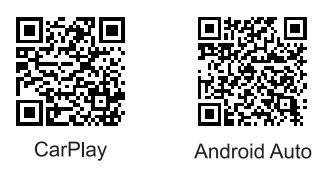
* Scan the QR code to check compatibility:
* FAQs & Troubleshooting
1.What is the Wi-Fi password for the adapter?
You do not need to connect to Wi-Fi or enter a password.For the initial setup, simply pair with the device named"VistaWay-****"in your phone's Bluetooth settings. The Wi-Fi connection will be established automatically after successful pairing. Please ensure your phone's Wi-Fi is turned on during this process.
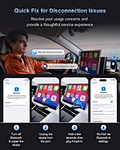
2.Android Auto fails to start orrecognize the USB after pairing.
Please follow these troubleshooting steps:
1)Initial Activation:If your car is using Android Auto for the first time,please first connect your phone to the car using an original data cable via a wired connection to complete the initial Android Auto setup.
2) Update the App:Please ensure
the"Android Auto"app on your Android phone is updated to the latest version from the Google Play Store.
the"Android Auto"app on your Android phone is updated to the latest version from the Google Play Store.
3)Clear Cache & Reconnect:
Turn off your phone's Bluetooth. Then,go to your phone's Settings>Apps>Android Auto>Storage, and select"Clear Cache."Finally, restart the adapter and reconnect.
Turn off your phone's Bluetooth. Then,go to your phone's Settings>Apps>Android Auto>Storage, and select"Clear Cache."Finally, restart the adapter and reconnect.
3.Audio input or output issues: calls rejected, no sound, microphone not working, or musicp auses.
These issues are often related to audio routing conflicts:
1)Check Other Bluetooth Devices: Please ensure your phone is not automatically connecting to other Bluetooth devices(e.g.,earphones, smart watches). If so, please disconnect them manually.
2)Check Audio Output:During a call, please check the'Audio' output option on your phone or car screen and make sure"CarPlay"or"Android Auto"is selected.
4.Can I use other Wi-Fi networks while using the adapter? No.When using the wireless
CarPlay or Android Auto function, your phone's Wi-Fi is occupied by the adapter for data transmission. Therefore,you cannot connect to other internet Wi-Fi networks simultaneously. However, you can still use the internet via your phone's mobile data(SIM card).
5.The adapter doesn't reconnect automatically.
1)Check Phone Settings:Please ensure your phone's Bluetooth and Wi-Fi are both turned on when you enter the car, and that the Bluetooth is not connected to another device.
2) Reset Connection:If it still doesn't reconnect,"Forget"or delete the"VistaWay-****"device from your phone's Bluetooth list, then restart your phone and re-pair with the adapter.
6.Can the adapter be paired with multiple phones?
Yes.The adapter can remember up to 5 phones, but it can only be actively connected to one phone at a time. By default, it will automatically try to reconnect to the most recently used phone.
To Switch Phones:Simply disable the Bluetooth on the currently connected phone, or manually connect to"VistaWay-****"from the Bluetooth list on the new phone you wish to use.
7.I can't find the adapter'sBluetooth or Wi-Fi signal.
Please follow these steps:
1)Check Power & Connection:
Confirm the adapter's indicator(red light) is on and that it is firmly plugged into the correct USB data port in your car
(the one designated for wired CarPlay/Android Auto,not a charging-only port).
Confirm the adapter's indicator(red light) is on and that it is firmly plugged into the correct USB data port in your car
(the one designated for wired CarPlay/Android Auto,not a charging-only port).
2)Troubleshoot: If convenient, please test with another phone. If only one specific phone cannot find the adapter,try resetting that phone's"Network Settings"and"Bluetooth Settings,"then restart it. If multiple phones cannot find the adapter, it may be faulty. Please contact us.
8.Does the adapter support YouTube video playback?
1)For Apple CarPlay: No,it does not.The CarPlay system does not support YouTube video playback for safety reasons.
2)For Android Auto:The native system does not support it.
Please note that watching videos while driving is dangerous and often illegal.Always prioritize safety.
Please note that watching videos while driving is dangerous and often illegal.Always prioritize safety.
Send Message